top of page
1 - Check Cables Connections
Poor power cable connections may cause Receivers to stop being detected. Make sure all cable connections to the Transmitter, Receivers, TV, and speakers are secure.

2 - Launch AUDIO Cu Mobile App
.png)
If you have not yet downloaded the AUDIO Cu mobile app:
3 - Use Speaker Detection
Locate and Click Any Grey Speaker Icon in the System Page
1. Connect to AUDIO Cu system (Bluetooth required).
2. On System page, look for grey speaker, click on it (if not, proceed to next section)
3. Click 'Detect Speakers' in the popup.

No Sound out of Receiver and all Speaker Icons Black
1. In the Audio Cu mobile app, navigate to the Settings menu.
2. Click 'System Management' , then 'Hardware'.3. Click 'Detect Speakers' in the popup.
3. In the Hardware menu, click 'Detect Speakers' and then exit the settings menu.


4 - Chime to Check Speaker
If speaker detection was successful, the grey icon will appear black.
If any speakers went missing since the last speaker detection scan, they should appear as grey.
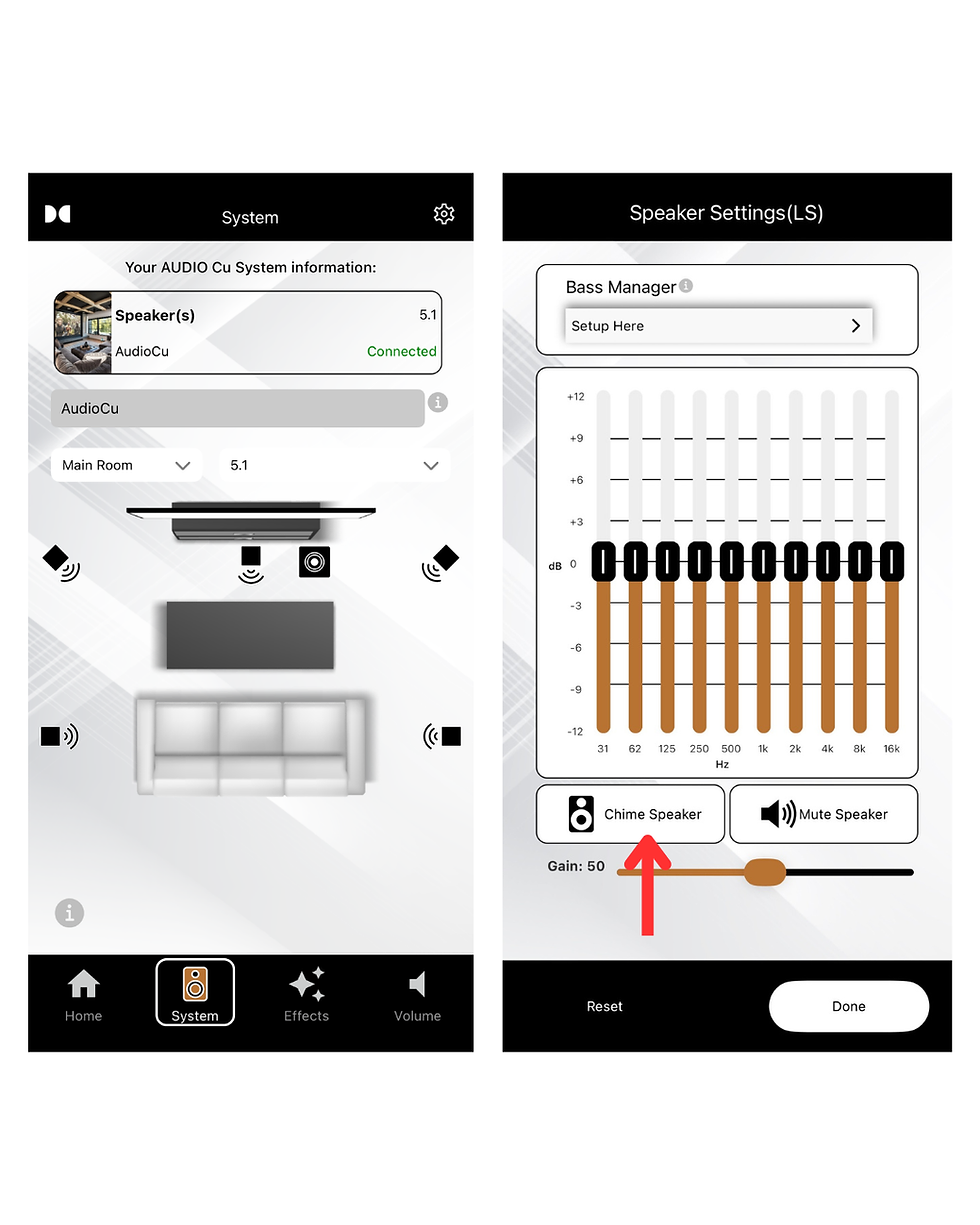
1. On the System page, click the black speaker icon.
2. Hit 'Chime' to chime the speaker.

bottom of page